RTK Ultra Positioning and Heading Module
RTK Ultra®
Version: V1.0
Translation status: English draft; pending technical review.
This manual is intended solely for the installation, configuration and operation of RTK Ultra products.
Reading this manual
- We recommend watching the official tutorial videos first.
- Then read this manual and the documentation supplied with the product.
- If you have questions, contact SINAVE technical support.
English draft — technical review pending. Some illustrations are Chinese placeholders awaiting replacement.
Product introduction
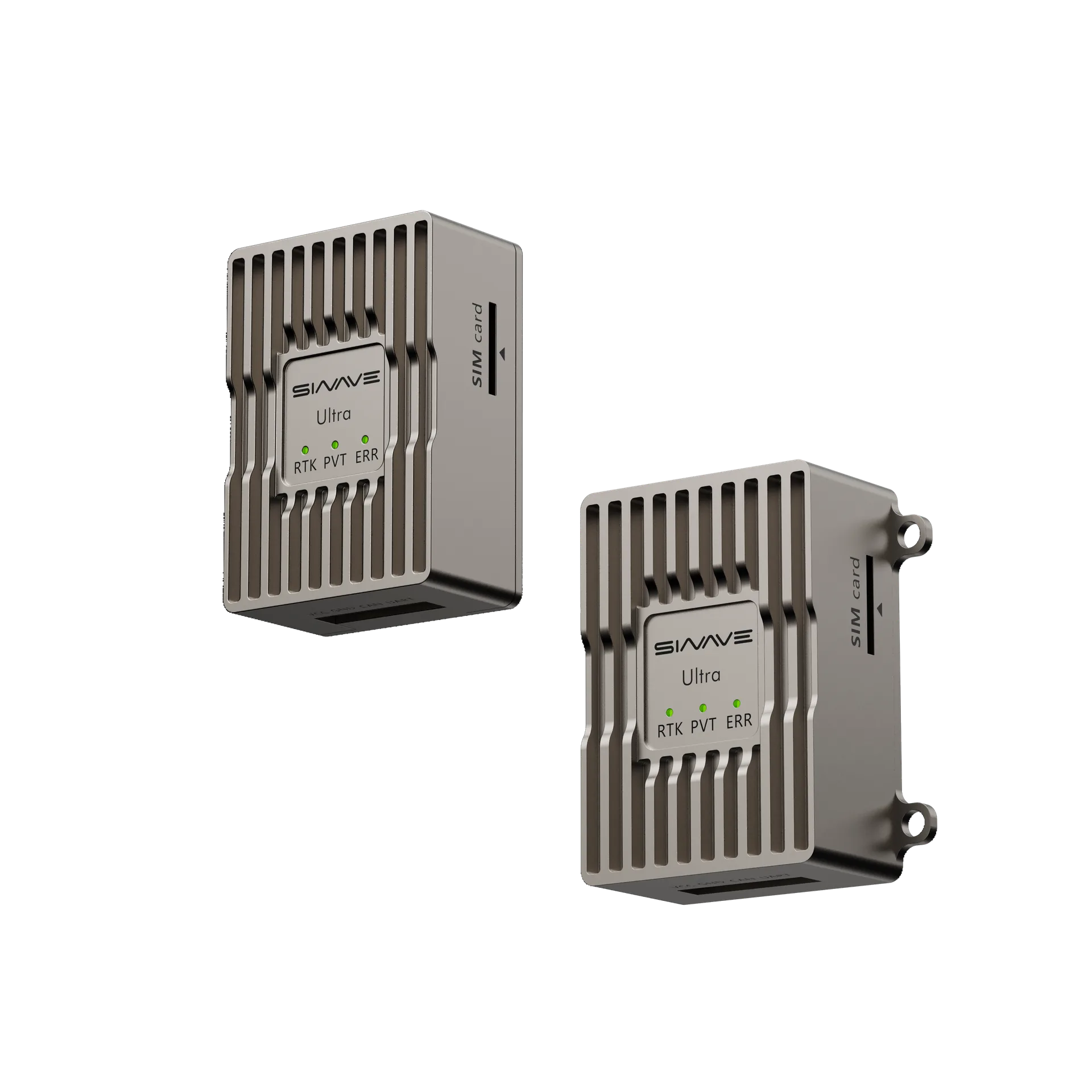
RTK Ultra combines high-precision RTK positioning with dual-antenna heading determination. It accepts serial RTCM correction data, supports 4G CORS network RTK, and offers an optional satellite-based RTK high-precision positioning service. It provides centimeter-level positioning and reliable heading solutions for mobile robots operating in demanding environments.
The module's compact, highly integrated design balances performance, reliability and ease of integration. It is suitable for drones, quadruped robots, humanoid robots, autonomous vehicles and unmanned vessels.
Its DroneCAN, UART and USB interfaces support integration with PX4 and ArduPilot (APM) drone platforms and robot platforms from Unitree, DEEP Robotics and Zhishen Intelligence. The 5–26 VDC input range simplifies development and system integration, providing reliable high-precision position and heading information for unmanned systems.
Specifications
| Item | Category | Specification |
|---|---|---|
| Constellations | BDS / GPS / GLONASS / Galileo / QZSS | |
| Master / Slave antenna frequencies | BDS | B1I, B2I, B3I |
| GPS | L1C/A, L2P(Y), L2C, L5 | |
| GLONASS | G1, G2 | |
| Galileo | E1, E5a, E5b | |
| QZSS | L1, L2, L5 | |
| Positioning accuracy | Standalone positioning (RMS) | Horizontal: 1.5 m Vertical: 2.5 m |
| DGPS | Horizontal: 0.4 m + 1 ppm Vertical: 0.8 m + 1 ppm |
|
| RTK | Horizontal: 0.8 cm + 1 ppm Vertical: 1.5 cm + 1 ppm |
|
| PPP | Horizontal: 5 cm Vertical: 10 cm |
|
| Heading accuracy (RMS) | 0.1° / 1 m baseline | |
| PPS accuracy (RMS) | 20 ns | |
| Velocity accuracy (RMS) | 0.03 m/s | |
| Time to first fix | Cold start | < 30 s |
| Hot start | < 4 s | |
| Data update rate | Configurable using the configuration software | Default: 10 Hz; maximum: 20 Hz |
Interface definitions
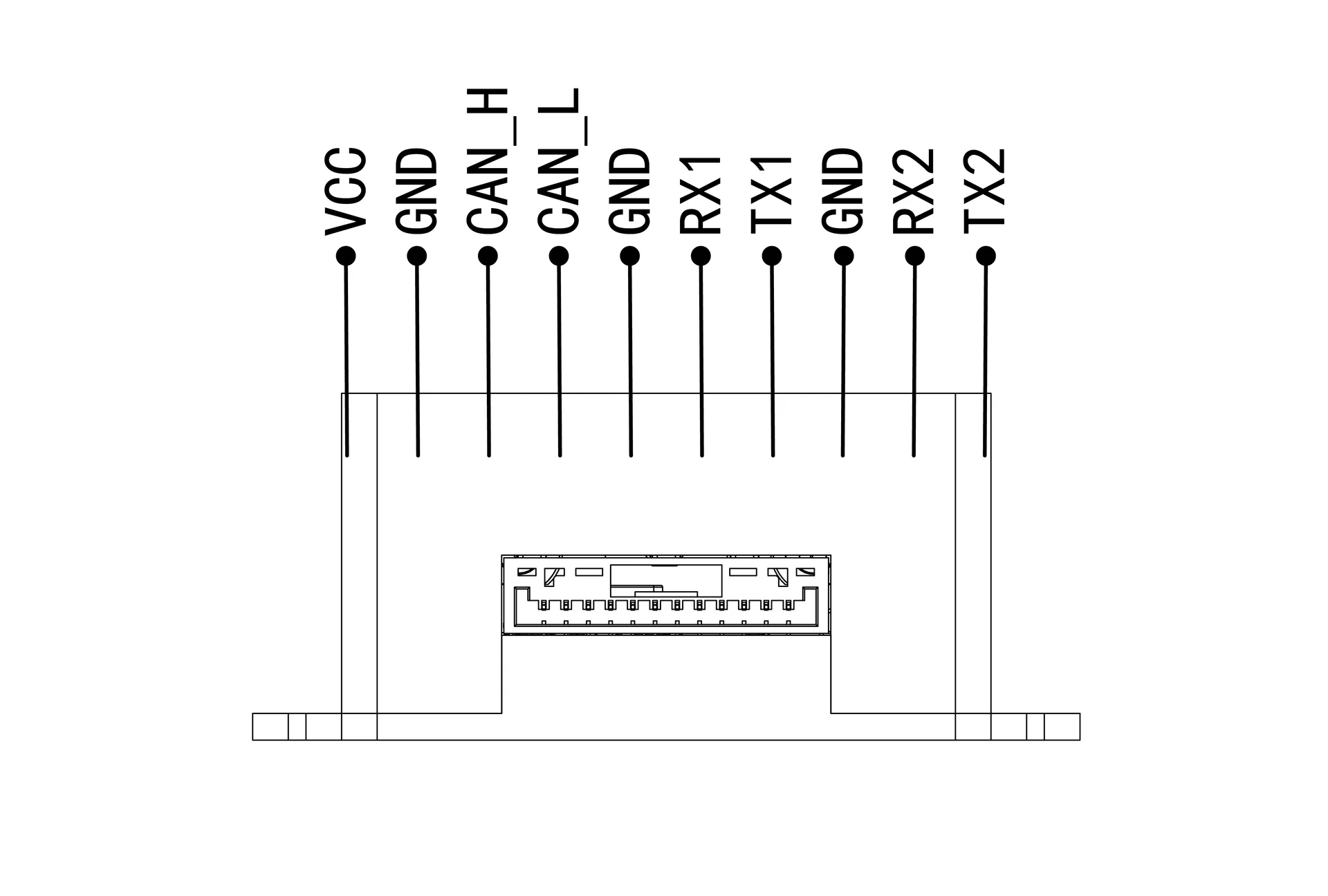
The module provides CAN and UART interfaces as shown in the diagram.
The CAN interface uses the standard DroneCAN protocol, allowing connection to common open-source flight controllers such as PX4 and ArduPilot (APM) to transmit position and heading information.
Two serial ports are provided:
- UART1: outputs position and heading data.
- UART2: receives RTCM correction data from an external correction source or another device.
| Name | Definition | Notes |
|---|---|---|
| VCC | Positive power supply | 5–26 V; must not exceed 28 V |
| GND | Power ground | Also serves as signal ground |
| CAN_H | CAN bus H | Standard CAN signal |
| CAN_L | CAN bus L | Standard CAN signal |
| TX1 | Serial port 1 transmit | Supports 3.3 V / 5 V TTL signals |
| RX1 | Serial port 1 receive | Supports 3.3 V / 5 V TTL signals |
| TX2 | Serial port 2 transmit | Supports 3.3 V / 5 V TTL signals |
| RX2 | Serial port 2 receive | Supports 3.3 V / 5 V TTL signals |
Parameter settings
Use the supplied configuration software to set module parameters. Connect the RTK module to a computer through its Type-C port. Run RTK-Manager-V2.1.exe, select the correct port and open the serial connection. Once connected, switch to the configuration page. The software reads the module parameters automatically; you can also click Read parameters to retrieve them manually.
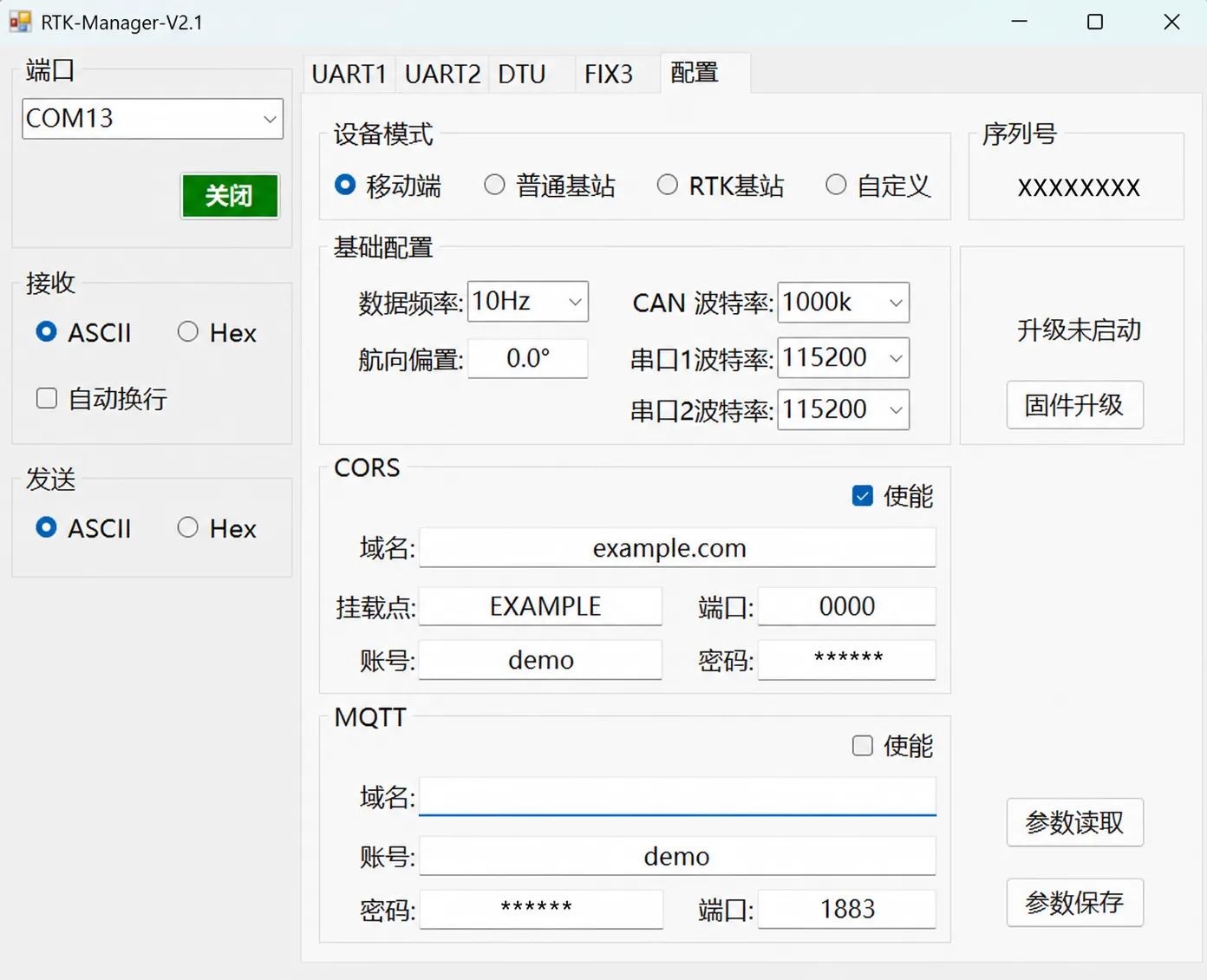 Chinese image placeholder. English replacement pending.
⚙️ Parameter descriptions
-
Device mode
The module supports four modes: Rover, Standard base station, RTK base station and Custom. The default is Rover. Select the mode that matches your application.
- Rover: operates as an RTK rover. Serial port 1 outputs FIX3 data, and the CAN interface outputs DroneCAN data.
- Standard base station: operates as a conventional reference station. Its coordinates have standard positioning accuracy and may change significantly after each power cycle. Serial port 1 outputs RTCM correction data. Use a data radio to send the corrections to one or more rovers for RTK positioning.
- RTK base station: obtains correction data from CORS and achieves an RTK fixed solution itself, so its coordinates remain substantially consistent after each power cycle. Serial port 1 outputs RTCM correction data. Use a data radio to send the corrections to one or more rovers for RTK positioning.
- Custom: configure the output messages for your application. Supported messages include NMEA 0183 messages such as GGA and ZDA, and RTCM correction data. Contact technical support for further information on custom messages and configuration.
-
Basic configuration
Configure the data rate, heading offset, CAN baud rate, serial port 1 baud rate and serial port 2 baud rate. After changing parameters, click Save parameters. The settings take effect after the device restarts.
- Data rate: sets the positioning output rate. Supported values are 1 / 2 / 5 / 10 / 20 Hz. Select a rate appropriate for the flight controller, robot controller or PC application.
- Heading offset: compensates for the angular difference between the dual-antenna baseline and the platform's body coordinate system when the antennas are not installed in the standard orientation.
- CAN baud rate: must match the flight controller or controller's CAN settings. The default is 1000 kbps.
- Serial port 1 baud rate: sets the UART1 rate. The port primarily outputs GNSS position and heading data and can also receive or output RTCM correction data. Match the baud rate to the connected device.
- Serial port 2 baud rate: sets the UART2 rate. The port primarily outputs GNSS position and heading data and can also receive or output RTCM correction data. Match the baud rate to the connected device.
-
CORS configuration
The module can access CORS / NTRIP correction services over 4G. When enabled, it automatically connects to the configured correction server and receives RTCM corrections for high-precision network RTK positioning.
- Enable: turns CORS network RTK on or off.
- Domain: the CORS / NTRIP server's domain name or IP address.
- Mountpoint: the mountpoint supplied by the correction service.
- Port: the CORS / NTRIP server's communication port.
- Account: the login account supplied by the correction service.
- Password: the password for that account.
Note: Enter the server address, port, mountpoint, account and password in sequence. Press Enter after completing each field. A Write successful message confirms that the value has been written. After configuring all fields, click Save parameters. The settings take effect after the device restarts.
-
MQTT configuration
The module can connect to a remote server using MQTT, uploading position data, device status and other information to a cloud platform or a server you operate.
- Enable: turns MQTT communication on or off.
- Domain: the MQTT broker's domain name or IP address.
- Account: the MQTT server login account.
- Password: the password for that account.
- Port: the MQTT broker's communication port.
Note: Enter the domain, port, account and password in sequence. Press Enter after completing each field. A Write successful message confirms that the value has been written. After configuring all fields, click Save parameters. The settings take effect after the device restarts.
⚠️ Important
- After entering a new value in a text input field such as a CORS account, press Enter each time to write it to the module.
- A Write successful message appears when the write succeeds.
- After configuring all parameters, click Save parameters.
- Unsaved changes are lost after a power cycle; the module reverts to the previously saved configuration.
Installation
 Chinese image placeholder. English replacement pending.
 Chinese image placeholder. English replacement pending.
-
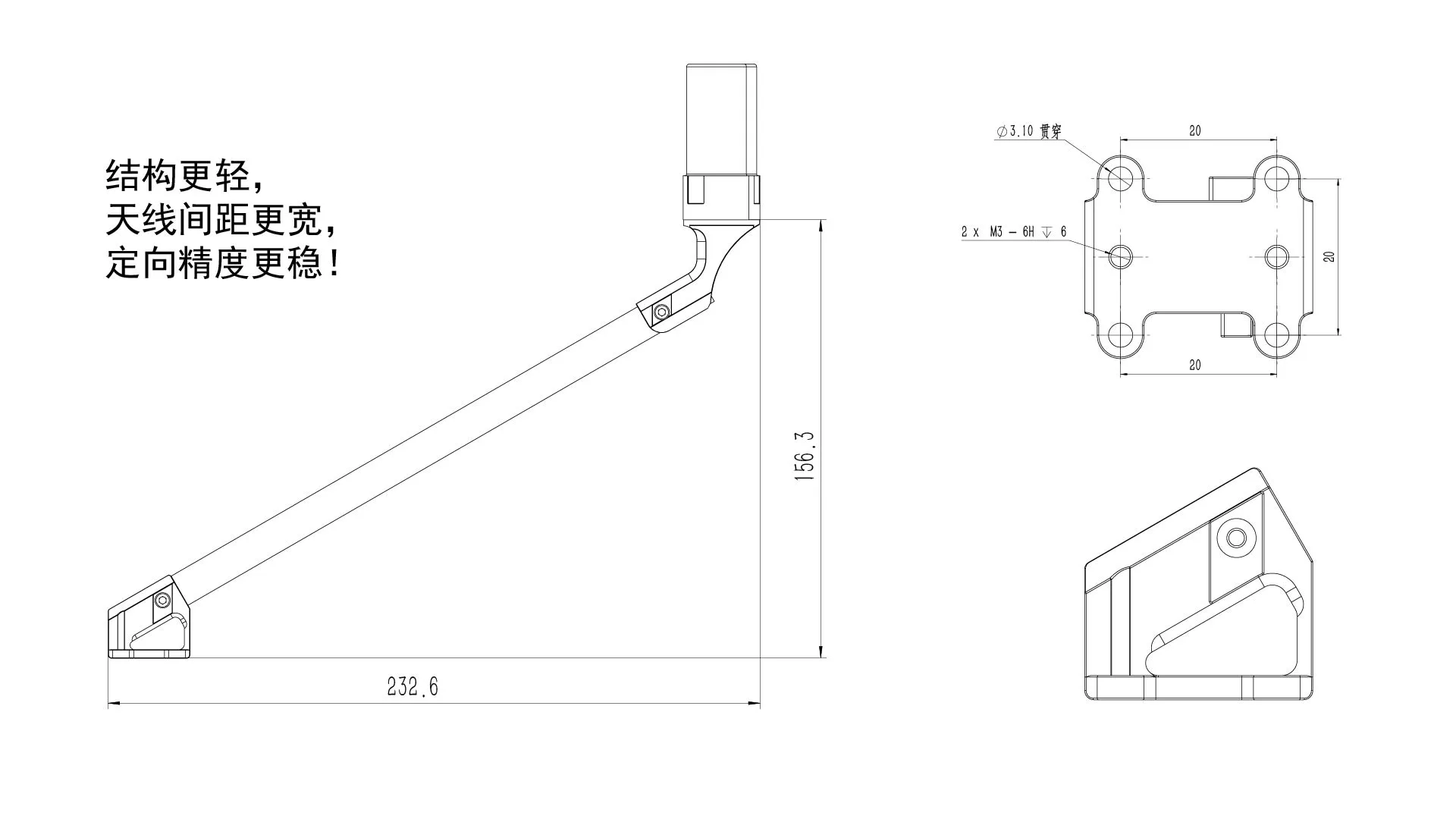
Position the antennas Use the widest antenna separation practical for the aircraft or robot. A Master-to-Slave separation of at least 30 cm is recommended for optimal heading performance.
-
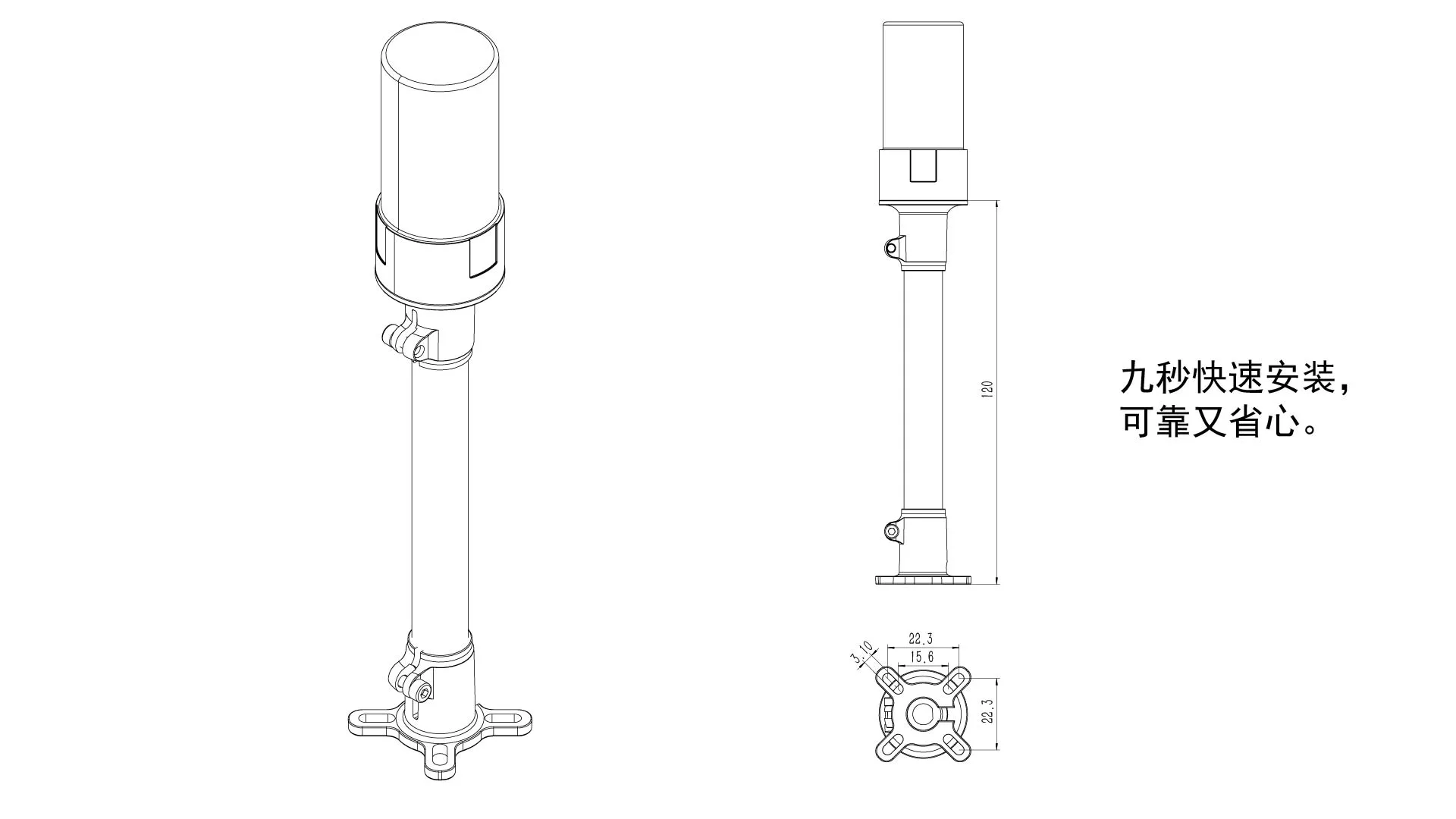
Secure the antennas Install the antenna brackets, then screw the helical antennas firmly into place.
-
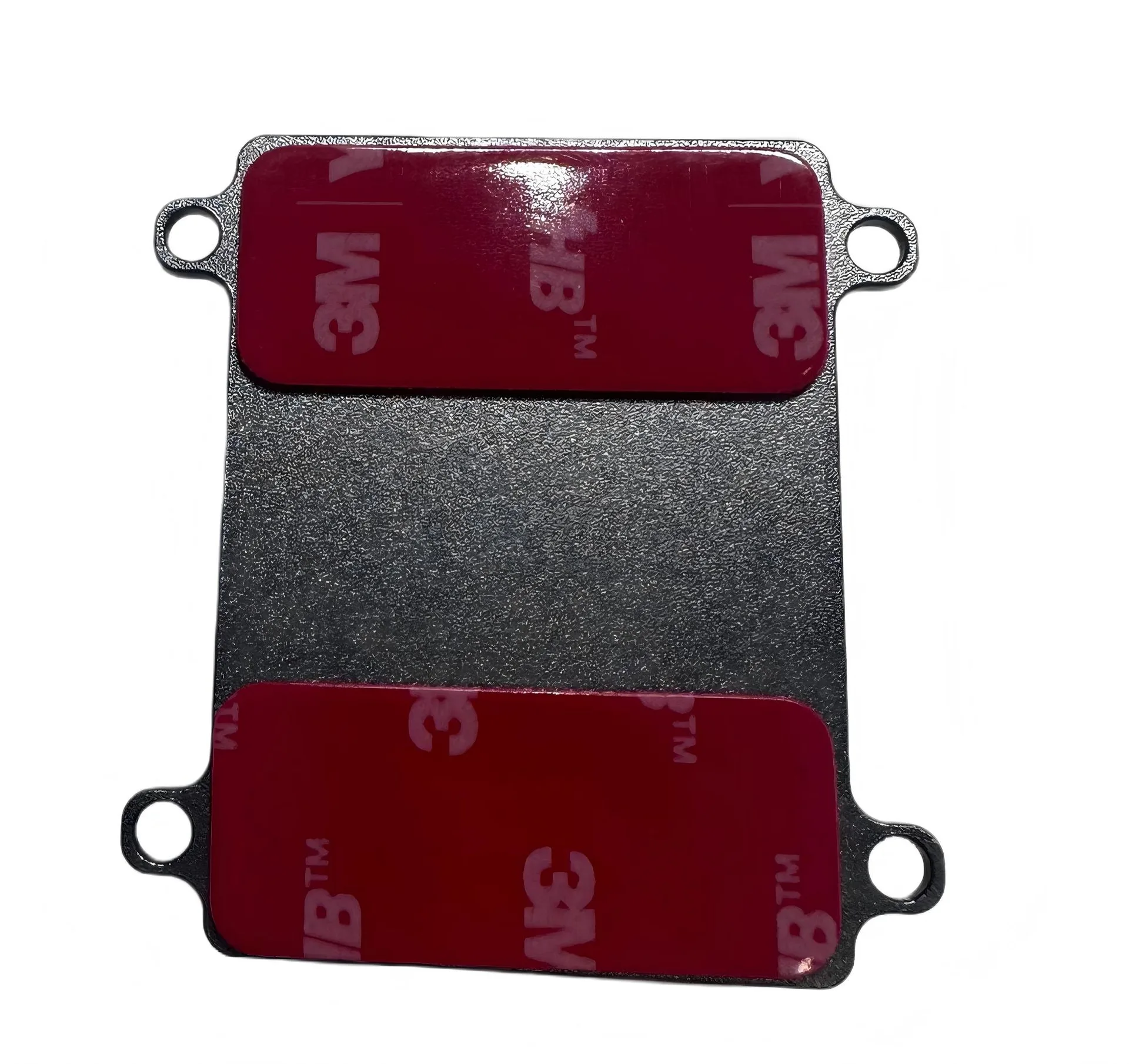
Secure the module Attach the RTK Ultra module to the platform using double-sided adhesive tape to prevent vibration and loosening. M3 bolts can also be used.
-
Connect communications Connect the module to the main controller through CAN or UART, as required by the controller.
Offset settings
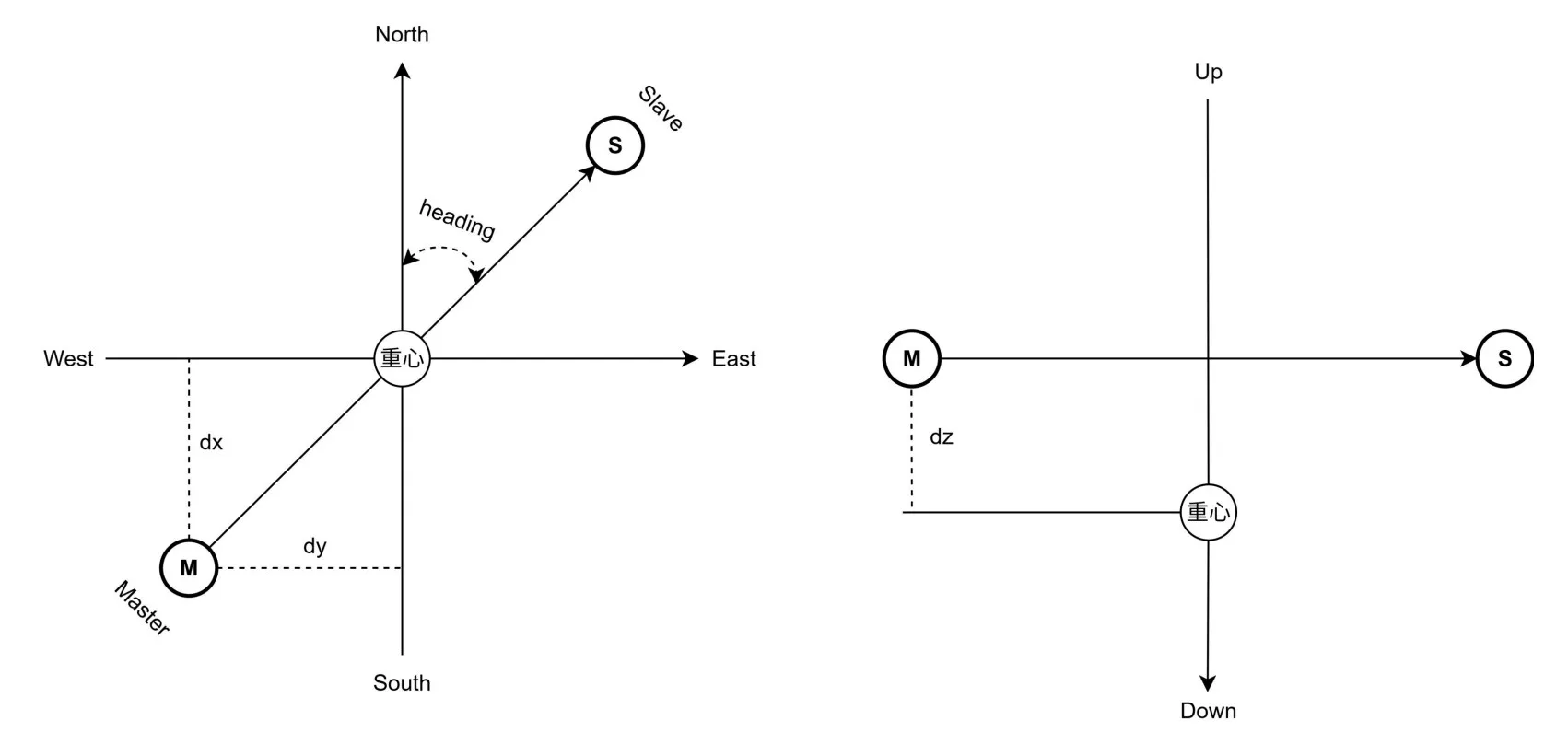
Position is referenced primarily to the Master antenna. Heading is the angle between true north and the vector from the Master antenna to the Slave antenna. When setting the position offset, use the Master antenna as the reference. The module uses the NED coordinate system by default:
- North offset (dx): positive; south offset (dx): negative.
- Right offset (dy): positive; left offset (dy): negative.
- Down offset (dz): positive; up offset (dz): negative.
 Chinese image placeholder. English replacement pending.
Normally, install the Master antenna directly behind the Slave antenna, with the Slave antenna at the front. The module's heading then matches the platform's forward direction.
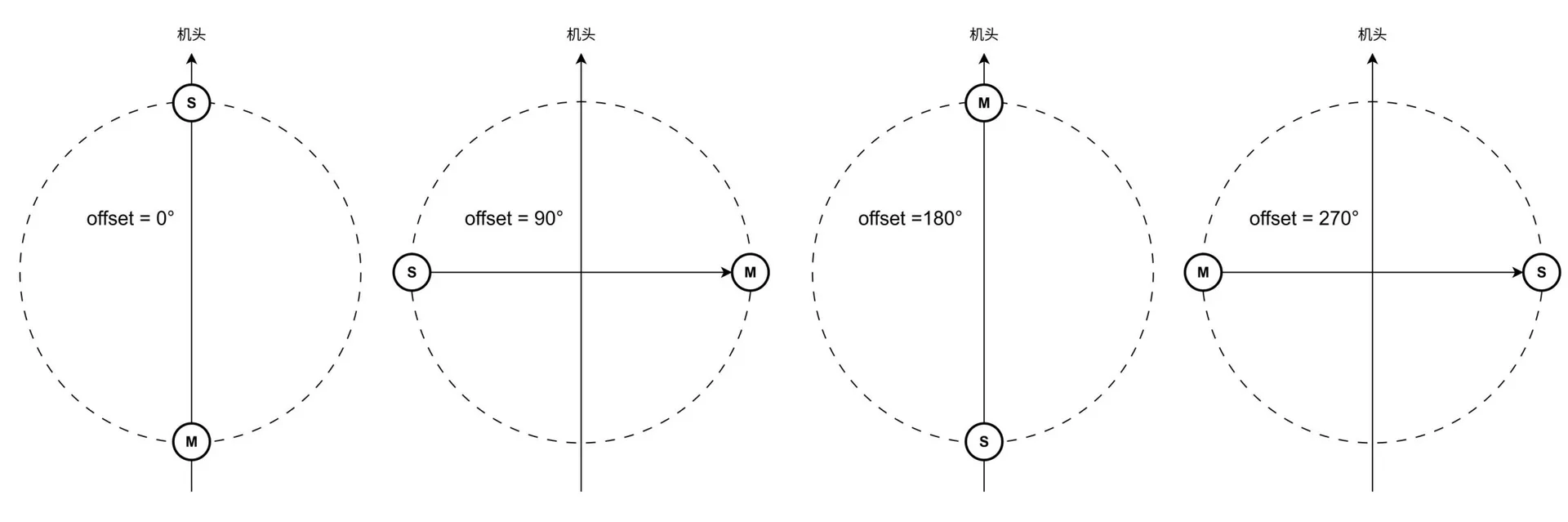
If installation constraints require rotating the antenna baseline, set the heading offset to the counterclockwise angle from the Master-to-Slave direction to the platform's forward direction. The following diagram shows four typical arrangements and their heading offsets.
Set the heading offset in RTK Manager. See the description of Default data in Parameter settings and set the Offset value.
 Chinese image placeholder. English replacement pending.
DroneCAN configuration
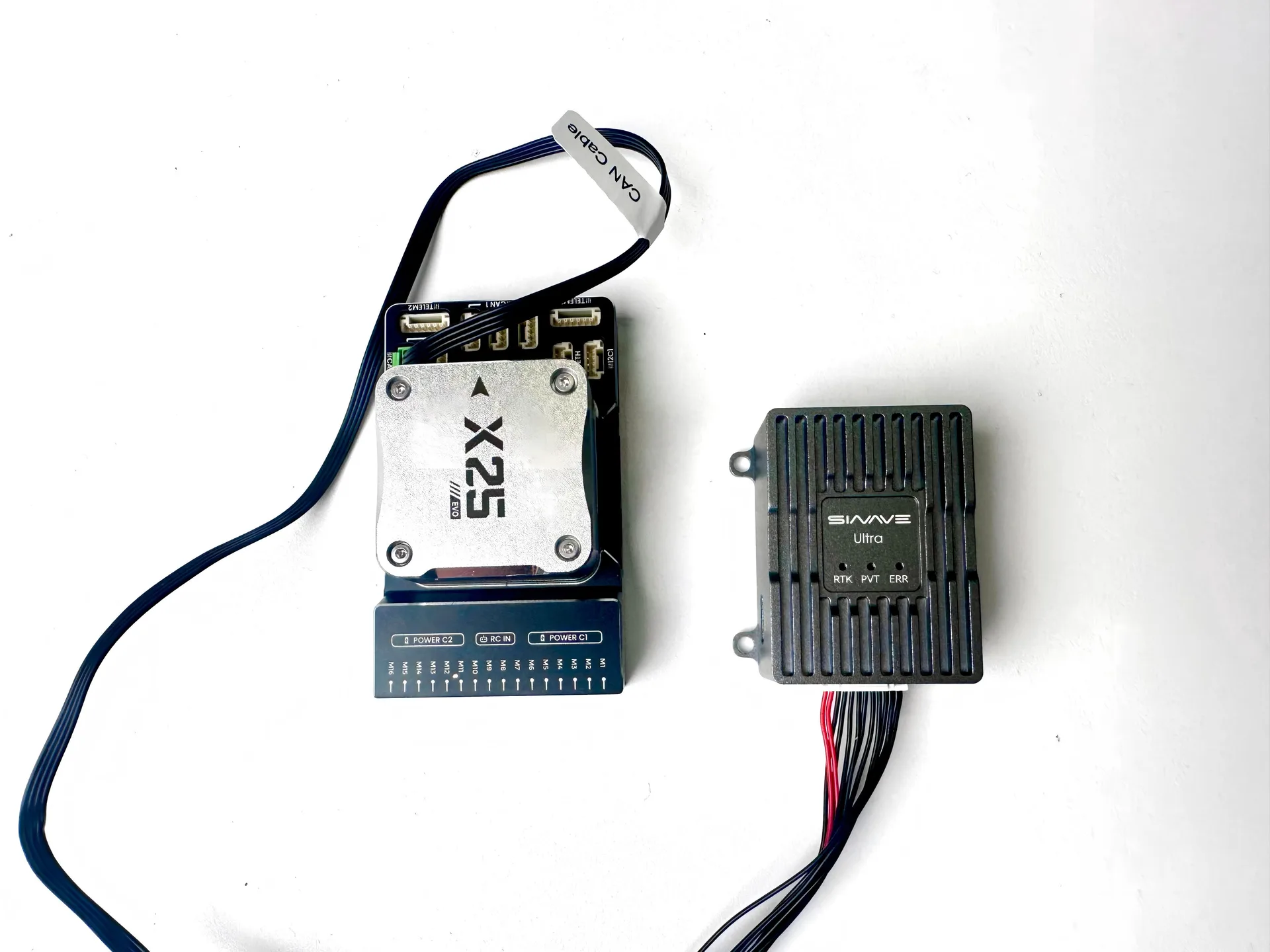
The module's CAN interface uses DroneCAN to connect to common open-source flight controllers. The following sections describe configuration for controllers running APM and PX4 firmware.
APM firmware parameters (MissionPlanner, firmware 4.6 and later)
CAN_P1_DRIVER = 1 (Enable the CAN1 driver)
GPS_AUTO_CONFIG = 0 (Disable automatic DroneCAN GPS configuration; the module is factory-configured, so keeping this disabled is recommended)
GPS1_TYPE = 9 (Set GPS type to **DroneCAN**)
GPS1_MB_TYPE=1 (After setting and saving this parameter, refresh the parameter list to make GPS1_MB_OFS available)
GPS1_MB_OFS_X=X (Master antenna relative X position; positive when the Master is ahead of the Slave)
GPS1_MB_OFS_Y=Y (Master antenna relative Y position; positive when the Master is to the right of the Slave)
GPS1_MB_OFS_Z=Z (Master antenna relative Z position; positive when the Master is below the Slave)
GPS1_POS_X=X (Master antenna X offset from the center of gravity, NED coordinates; forward positive, rearward negative)
GPS1_POS_Y=Y (Master antenna Y offset from the center of gravity, NED coordinates; right positive, left negative)
GPS1_POS_Z=Z (Master antenna Z offset from the center of gravity, NED coordinates; down positive, up negative)
EK2_SRC1_YAW = 2 / 3
   - 2: Use GPS as the only heading source
   - 3: Use GPS preferentially, with the compass as backup
EK3_OGN_HGT_MASK = 5 (Use GPS to correct barometric altitude)
PX4 firmware parameters (QGC)
UAVCAN_ENABLE="Sensors Automatic Config"
UAVCAN_SUB_GPS="Enable"
UAVCAN_SUB_GPS_R="Enable"
EKF2_GPS_CTRL=15
EKF2_GPS_POS_X (Master antenna X offset from the center of gravity, NED coordinates; forward positive, rearward negative)
EKF2_GPS_POS_Y (Master antenna Y offset from the center of gravity, NED coordinates; right positive, left negative)
EKF2_GPS_POS_Z (Master antenna Z offset from the center of gravity, NED coordinates; down positive, up negative)
EKF2_MAG_TYPE="Automatic" / "None" / "Init"
    - "Automatic" (Suitable for normal use; the magnetic compass participates as a backup)
    - "None" (Do not use the magnetic compass)
    - "Init" (Use the electronic compass only for initialization)
If EKF2_MAG_TYPE is set to "Automatic" or "Init", magnetic interference may cause
intermittent heading jumps in PX4. The source manual attributes this most likely to
the PX4 flight controller algorithm. If this occurs, set EKF2_MAG_TYPE to "None".
System checks
Installation and component checks
- Check that the RTK Ultra module is installed correctly and securely.
- Check that the communication cables and helical antennas are connected correctly and securely.
Operating status checks
- Check that the LED indicators match the current operating status.
- Check the helical antenna separation and the Master / Slave antenna positions.
- In the ground station software, check whether RTK has achieved a fixed solution (RTK Fixed).
💡 LED quick reference
| Indicator | Steady green | Steady red |
|---|---|---|
| RTK | RTK fixed solution; high-precision centimeter-level positioning output | No RTK fixed solution; standard positioning output |
| PVT | Normal satellite count; standard positioning output | No position fix; no valid positioning information |
| ERR | Normal operation | System fault |
Common problems and solutions
| Problem | Solution |
|---|---|
| PVT LED is red | Too few satellites are being received. Check for major obstructions and test at a different location. |
| Satellite signals cannot be received indoors. Test outdoors. | |
| Check whether the helical antenna cable is tight and whether the SMA cable is damaged. | |
| RTK LED is red and no fixed solution is obtained | Check that the SMA connectors are tight and the RF cables are intact. RF cables are fragile; do not bend them to a small radius. |
| Swap the Slave and Master antennas to determine whether an RF cable is damaged. | |
| Check the CORS account entries. Press Enter after each entry and confirm that the Write successful message appears. | |
| Keep the area within 45° of the helical antenna as clear of obstructions as possible; obstructions affect satellite reception. | |
| The IoT SIM includes 2 GB of free data per month. If it is used up, the allowance resets the following month. Provide the serial number (SN) to technical support to check the remaining allowance. | |
| Check whether the CORS account has expired. | |
| Check that the CORS account was entered correctly. | |
| Check that Device mode is set to Rover. | |
| Serial terminal displays garbled data | Do not use the Type-C port to decode Fix3. It is the PC configuration/debug port. |
| Use serial port 1. Connect it to a PC through a USB-to-TTL adapter to inspect the output. | |
| Replace the Type-C cable with one that supports data transfer and test again. | |
| RTK LED turns off while the robot moves and recovers when it stops | Check whether the SMA cable at the Master connector is damaged by excessive bending or whether the connector is loose. |
| Swap the Slave and Master antennas to determine whether an RF cable is damaged. |
ULINK protocol definitions
| Region | Field | Data type | Start byte | Length (bytes) | Description |
|---|---|---|---|---|---|
| Header | head1 | uint8 | 1 | 1 | Frame header 1 |
| Header | head2 | uint8 | 2 | 1 | Frame header 2 |
| Header | id | uint16 | 3 | 2 | Message ID |
| Header | addr | uint16 | 5 | 2 | Message address |
| Header | len | uint16 | 7 | 2 | Length field: the most significant bit, len[15], indicates whether a data payload is present; len[14:0] specifies its length.• len[15] = 1: data is present; length is len[14:0].• len[15] = 0: no data; length is 0. |
| Header | check | uint16 | 9 | 2 | Checksum: sum all bytes except the check field and retain the uint16 result. |
| Payload | data | See message definition | 11 | len[14:0] as specified |
Payload length is 0 when len[15] = 0. |
FIX3 message definition
| Region | Field | Data type | Start byte | Length (bytes) | Value / bytes | Description |
|---|---|---|---|---|---|---|
| Header | head1 | uint8 | 1 | 1 | 0xFA | Frame header |
| head2 | uint8 | 2 | 1 | 0xAA | Frame header | |
| id | uint16 | 3 | 2 | 0x0427 | Message ID = 1063 | |
| addr | uint16 | 5 | 2 | 0x0000 | Message address 0 | |
| len | uint16 | 7 | 2 | 0x803F | Payload length: 63 bytes. | |
| check | uint16 | 9 | 2 | B9~B10 | Sum all bytes except check and retain the uint16 result. | |
| Payload | gps_time | uint64 | 11 | 8 | B11~B18 | UTC timestamp in μs since 1970-01-01 00:00:00. Add the time-zone offset for local time. |
| lon | int40 | 19 | 5 | B19~B23 | Longitude, 8 decimal places; encoded value = degrees × 10^8; unit: 0.00000001°. | |
| lat | int40 | 24 | 5 | B24~B28 | Latitude, 8 decimal places; encoded value = degrees × 10^8; unit: 0.00000001°. | |
| alt | int24 | 29 | 3 | B29~B31 | Altitude, 3 decimal places; encoded value = meters × 1000; unit: mm. | |
| vel_n | int32 | 32 | 4 | B32~B35 | North velocity, 3 decimal places; encoded value = m/s × 1000; unit: mm/s. | |
| vel_e | int32 | 36 | 4 | B36~B39 | East velocity, 3 decimal places; encoded value = m/s × 1000; unit: mm/s. | |
| vel_d | int32 | 40 | 4 | B40~B43 | Down velocity, 3 decimal places; encoded value = m/s × 1000; unit: mm/s. | |
| heading | int16 | 44 | 2 | B44~B45 | Dual-antenna heading, 2 decimal places; encoded value scaled by 100; unit: 0.01°; range: [-180°, 180°]; invalid value: 32767. | |
| heading_std | uint16 | 46 | 2 | B46~B47 | Dual-antenna heading standard deviation, 2 decimal places; encoded value scaled by 100; invalid value: 32767. | |
| pos_n_std | uint24 | 48 | 3 | B48~B50 | North position standard deviation, 3 decimal places; encoded value scaled by 1000; unit: mm. | |
| pos_e_std | uint24 | 51 | 3 | B51~B53 | East position standard deviation, 3 decimal places; encoded value scaled by 1000; unit: mm. | |
| pos_d_std | uint24 | 54 | 3 | B54~B56 | Down position standard deviation, 3 decimal places; encoded value scaled by 1000; unit: mm. | |
| vel_n_std | uint24 | 57 | 3 | B57~B59 | North velocity standard deviation, 3 decimal places; encoded value scaled by 1000; unit: mm/s. | |
| vel_e_std | uint24 | 60 | 3 | B60~B62 | East velocity standard deviation, 3 decimal places; encoded value scaled by 1000; unit: mm/s. | |
| vel_d_std | uint24 | 63 | 3 | B63~B65 | Down velocity standard deviation, 3 decimal places; encoded value scaled by 1000; unit: mm/s. | |
| pdop | uint16 | 66 | 2 | B66~B67 | Position dilution of precision, 1 decimal place; encoded value scaled by 10; unit: 0.1. | |
| vdop | uint16 | 68 | 2 | B68~B69 | Velocity dilution of precision (description retained from the Chinese source), 1 decimal place; encoded value scaled by 10; unit: 0.1. | |
| hdop | uint16 | 70 | 2 | B70~B71 | Vertical dilution of precision (description retained from the Chinese source), 1 decimal place; encoded value scaled by 10; unit: 0.1. | |
| sats_used | uint8 | 72 | 1 | B72 | Number of satellites used. | |
| fix_type | uint8 | 73 | 1 | B73 | Positioning status: 0 invalid, 1 standalone, 2 differential, 3 PPP, 4 RTK FLOAT, 5 RTK FIXED. |
Parsing example (C / C++)
#include <stdint.h>

uint64_t val;
int64_t lon;

/*
 * Raw bytes (little-endian):
 * 98 DE BE 6B 02
 */
val = ((uint64_t)0x02 << 56)
    + ((uint64_t)0x6B << 48)
    + ((uint64_t)0xBE << 40)
    + ((uint64_t)0xDE << 32)
    + ((uint64_t)0x98 << 24);

/* Shift right by 24 bits to obtain a signed 40-bit integer */
lon = (int64_t)val >> 24;
Notes
- All fields use little-endian byte order.
- Assemble bytes as unsigned integers first.
- For signed data, convert the assembled value to a signed integer afterwards.
- The longitude and latitude fields in this example are 40-bit signed integers. Scale the decoded values according to the protocol to obtain physical values.
FIX3 parsing example (Python)
import datetime


def read_uint16_le(b, p):
    return int.from_bytes(b[p:p + 2], "little", signed=False)


def read_uint24_le(b, p):
    return b[p] | (b[p + 1] << 8) | (b[p + 2] << 16)


def read_int24_le(b, p):
    v = read_uint24_le(b, p)
    return v - (1 << 24) if v & 0x800000 else v


def read_uint40_le(b, p):
    return (
        b[p]
        | (b[p + 1] << 8)
        | (b[p + 2] << 16)
        | (b[p + 3] << 24)
        | (b[p + 4] << 32)
    )


def read_int40_le(b, p):
    v = read_uint40_le(b, p)
    return v - (1 << 40) if (v & (1 << 39)) else v


def checksum16(data: bytes) -> int:
    return sum(data) & 0xFFFF


def parse_ulink_frame(frame: bytes):
    if len(frame) < 11:
        raise ValueError("Frame too short")

    if frame[0] != 0xFA or frame[1] != 0xAA:
        raise ValueError("Invalid frame header")

    msg_id = read_uint16_le(frame, 2)
    addr = read_uint16_le(frame, 4)
    len_raw = read_uint16_le(frame, 6)

    has_data = bool(len_raw & 0x8000)
    data_len = (len_raw & 0x7FFF) if has_data else 0

    total_len = 11 + data_len
    if len(frame) < total_len:
        raise ValueError("Frame length mismatch")

    check = read_uint16_le(frame, 8)
    calc = checksum16(frame[:8] + frame[10:10 + data_len])
    check_ok = (check == calc)

    data = frame[10:10 + data_len] if has_data else b""

    return {
        "id": msg_id,
        "addr": addr,
        "data_len": data_len,
        "check_ok": check_ok,
        "data": data,
        "total_len": total_len,
    }


def parse_gnss_fix3(data: bytes):
    if len(data) != 63:
        raise ValueError("GNSS_FIX3 payload length error")

    gps_time_us = int.from_bytes(data[0:8], "little", signed=False)
    gps_utc = datetime.datetime(1970, 1, 1) + datetime.timedelta(
        microseconds=gps_time_us
    )

    lon = read_int40_le(data, 8) / 1e8
    lat = read_int40_le(data, 13) / 1e8
    alt = read_int24_le(data, 18) / 1000.0

    vn = int.from_bytes(data[21:25], "little", signed=True) / 1000.0
    ve = int.from_bytes(data[25:29], "little", signed=True) / 1000.0
    vd = int.from_bytes(data[29:33], "little", signed=True) / 1000.0

    heading_raw = int.from_bytes(data[33:35], "little", signed=True)
    heading = None if heading_raw == 32767 else heading_raw / 100.0

    heading_acc_raw = int.from_bytes(data[35:37], "little", signed=False)
    heading_acc = None if heading_acc_raw == 32767 else heading_acc_raw / 100.0

    posN = read_uint24_le(data, 37) / 1000.0
    posE = read_uint24_le(data, 40) / 1000.0
    posD = read_uint24_le(data, 43) / 1000.0

    vNacc = read_uint24_le(data, 46) / 1000.0
    vEacc = read_uint24_le(data, 49) / 1000.0
    vDacc = read_uint24_le(data, 52) / 1000.0

    pdop = int.from_bytes(data[55:57], "little") / 10.0
    vdop = int.from_bytes(data[57:59], "little") / 10.0
    hdop = int.from_bytes(data[59:61], "little") / 10.0

    sats = data[61]
    fix = data[62]

    return {
        "time": gps_utc,
        "lat": lat,
        "lon": lon,
        "alt": alt,
        "vn": vn,
        "ve": ve,
        "vd": vd,
        "heading": heading,
        "heading_acc": heading_acc,
        "pdop": pdop,
        "vdop": vdop,
        "hdop": hdop,
        "sats": sats,
        "fix_type": fix,
    }


def scan_frames(stream: bytes):
    frames = []
    i = 0
    n = len(stream)

    while i + 11 <= n:
        if stream[i] == 0xFA and stream[i + 1] == 0xAA:
            try:
                fr = parse_ulink_frame(stream[i:])
                frames.append(fr)
                i += fr["total_len"]
                continue
            except Exception:
                i += 1
        else:
            i += 1

    return frames


if __name__ == "__main__":
    with open("Serial Debug.txt", "r", encoding="utf-8") as f:
        hex_text = f.read().strip()

    raw = bytes(int(x, 16) for x in hex_text.split())
    frames = scan_frames(raw)

    for fr in frames:
        if fr["id"] == 0x0427 and fr["data_len"] == 63 and fr["check_ok"]:
            fix = parse_gnss_fix3(fr["data"])
            print(
                f"time={fix['time']} "
                f"lat={fix['lat']:.8f} lon={fix['lon']:.8f} "
                f"alt={fix['alt']:.3f}m "
                f"sats={fix['sats']} fix={fix['fix_type']}"
            )